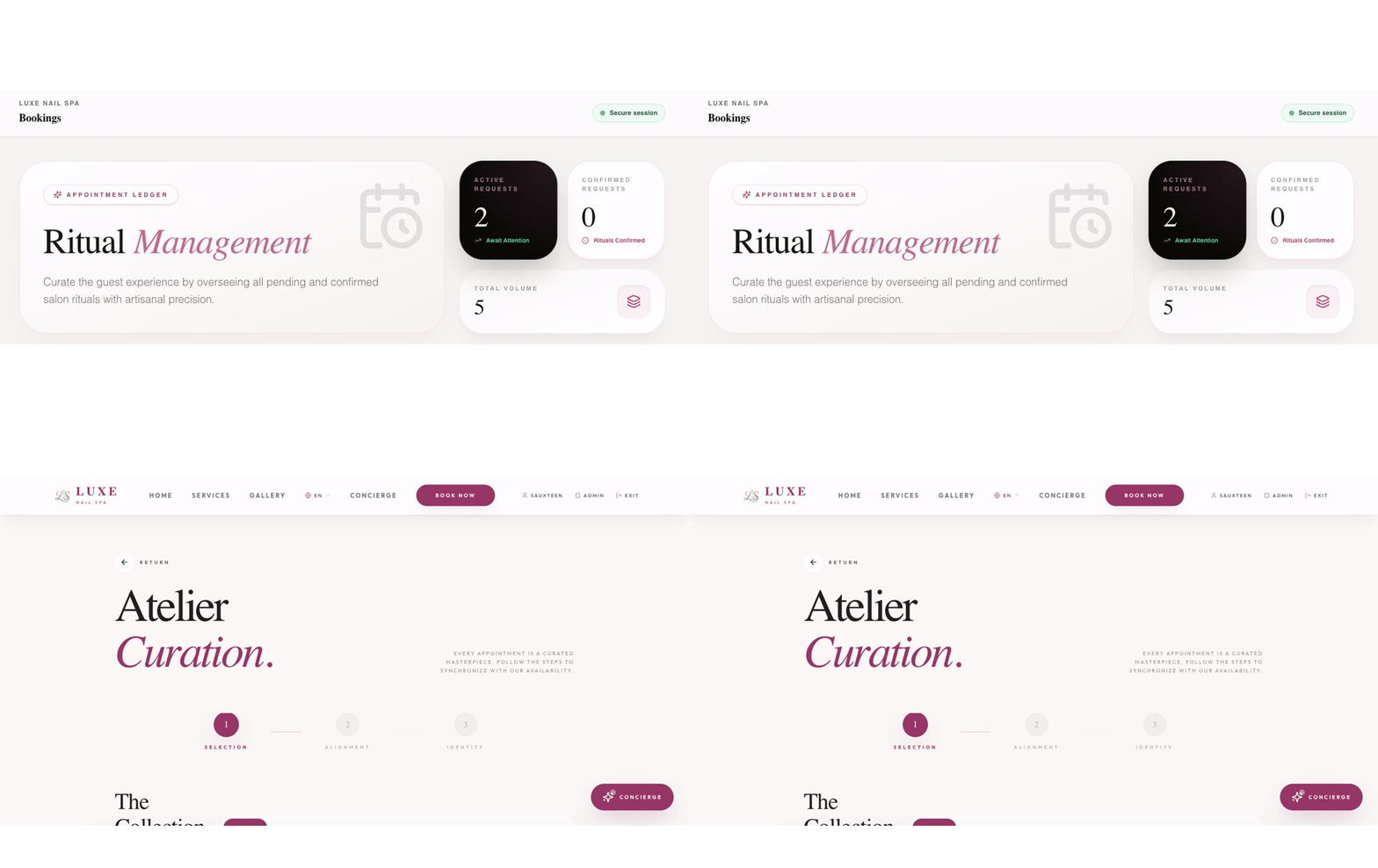
Bookings
Bookings
Section titled “Bookings”Open Bookings to manage appointments created by customers or staff.
Review an appointment
Section titled “Review an appointment”- Search or filter the booking list by date and status.
- Open a row to inspect the customer, service, provider, date, and time.
- Use the available edit action to correct or reschedule the appointment.
- Confirm the saved state before leaving the page.
Create a booking for a customer
Section titled “Create a booking for a customer”- Choose New booking.
- Select an existing customer or create the customer record when prompted.
- Choose the service, provider, date, and available time.
- Review the details and confirm.
Safe operating rules
Section titled “Safe operating rules”- Double-check the timezone and provider before confirming.
- Treat cancellation and rescheduling as customer-impacting actions; read the confirmation dialog.
- Keep internal notes factual and never put passwords, payment details, or sensitive data in them.
- Verify the final status in the list after every change.
What customers see
Section titled “What customers see”The customer receives the booking experience through the public booking page. The admin record is internal; customer-facing notifications and account details depend on the configured workflow.